1: Open any Maya scene, or leave the scene from the previous example open.
2: If no objects are present in your scene, create a few primitives, the number and type are not important.
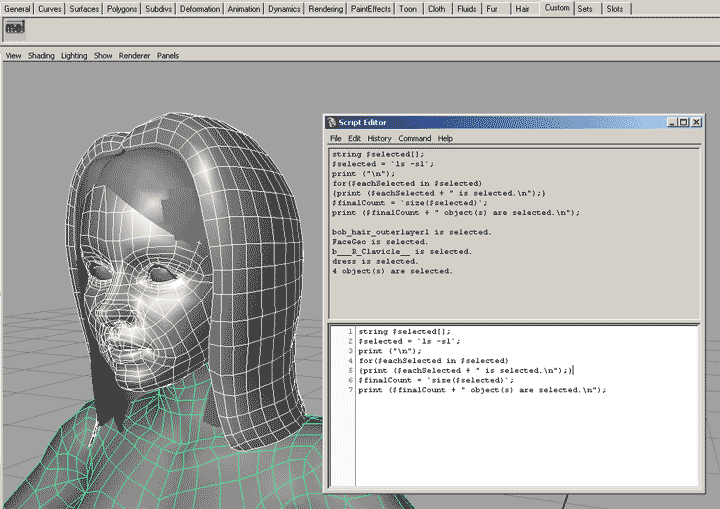
3. Open the Script editor and copy the following into the large open field at the bottom:
string $selected[];
$selected = `ls -sl`;
print ("\n");
for($eachSelected in $selected)
{print ($eachSelected + " is selected.\n");}
$finalCount = `size($selected)`;
print ($finalCount + " object(s) are selected.\n");
4. Select any number of objects in your scene.
5. Without de-selecting those objects, highlight all of the text you just wrote into the Script Editor and press the "Enter" key on the Numpad of your keyboard.
You should now see the list of objects printed into the top gray field of the Script Editor followed by a statement that gives a final count of those objects. This upper field is called the "history" of the Script Editor and can be used as a reference to make quick shelf buttons and custom procedures.
Note: Hitting "Enter" on the regular keyboard will not run the script, and deletes it from the input field. Usually a quick undo will return your script. Hitting "Enter" on the Numpad runs the highlighted part of your script.
Why does this work?
For this script we created an array. An array is a series of the same variable type collected together in a single list with one name. Arrays are great ways to handle information that you may later want to use together. In this case we're going to run the array through a common "for-in" loop. This means that we will tell Maya that for every individual object in our array we're going to want the same function to be performed.
| We begin by letting Maya know that we want it to remember some information with characters in it | string $selected |
| we might actually have a list of information | []; |
| the information should be as follows | $selected = |
| Maya needs to run a function here | ` |
| we use the shorthand for "list" and add the flag for selected | ls -sl |
| then we complete the function call and close the command | `; |
| next we open a statement to start printing to the Script Editor | print ( |
| all we want is a new line to separate the coming text from the previous information | "\n" |
| then we close the print statement and end the command | ); |
| now we open a loop dialogue | for( |
| Maya assumes that the next variable is part of an array | $eachSelected |
| we go along with this assumption and tell Maya to use the array we just made | in $selected) |
| now we open the function that will be looped | { |
| the loop function will be a print statement | print ( |
| print statements evaluate and return all variables that are not inside quotes | $eachSelected |
| they can be used to add like types of data together, in this case strings | + |
| the end of our string is text | " is selected. |
| we finish the text with a call for a new line | \n" |
| then we close the print statement | ) |
| and end the command | ; |
| which finishes our loop. | } |
| lastly we implicitly declare a new variable by naming it and assigning its value in the same line | $finalCount = |
| Maya will need to perform a function before it knows the value of our new variable | ` |
| the function gets the number of objects in our array | size($selected) |
| that's all. close the function call and end the command | `; |
| to get all the information back from Maya we tell it to print the data | print ( |
| the statement begins with an evaluation of the previous variable | $finalCount |
| then we tack more text onto the end | + |
| the text reminds us what the information means | " object(s) are selected. |
we finish with a call for a new line |
\n" |
| and close the print statement and end the command | ); |
That seems like a lot to type for a simple list of objects. If you find that you're constantly highlighting text in your Script Editor to run like in this example, you may want to make a shelf button out of it. It's quite simple, but has the same limitations that Hotkeys do - they only work as the current user on this machine. It's possible to get Maya to use shared shelves over a network but that won't be covered until later. For now, just make sure your shelves are visible. If you don't see them, you can check the option under Display>UI Elements>Shelf.
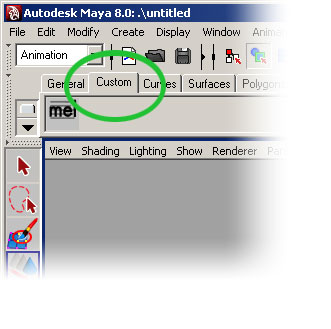
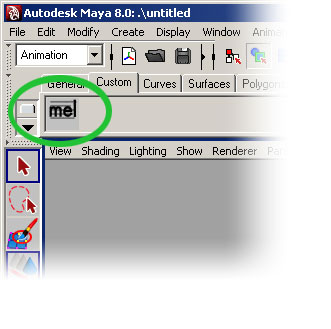
Now click on the "Custom" shelf to prevent cluttering up Maya's native shelves with new scripts. Then simply highlight the script you want in the Script Editor and middle-mouse drag it onto the open gray space in the shelf. You may notice a white "plus" next to your cursor as you hover over the correct space. Now let go. You should see a generic "mel" button on your shelf. You can edit the contents at any time by using the options in the drop down menu available to the left of the shelves. This is where you'll find the shelf editor.

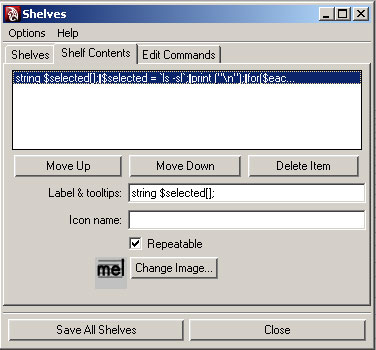
Here you can modify your frequently used commands, label your shelf buttons, and even use custom 32 X 32 .bmp files as images for your buttons.