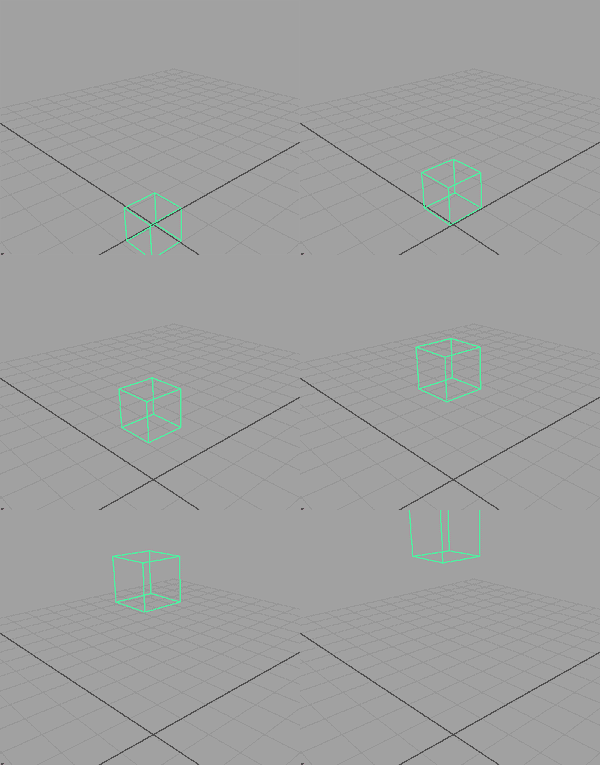
So far we've gone over the basics of MEL and how to use this powerful language to directly affect the current scene. The next step is taking this knowledge and using it to develop tools that can be shared and used in a variety of scenarios. The most common type of tool created with MEL is the global procedure. A global procedure is simply a script like the ones we've covered recently that have been given names. Giving a script a name means that you can call this name later from a button or other command and the entire script will run without Maya having to read the entire code again. By default, Maya stores procedures found in your preferences directory under My Documents>maya>*version*>scripts into memory when Maya is launched. After launch, Maya ignores changes to this directory until you force an update.
Lets test this with a simple script.
We'll use this code:
$updateZ = `getAttr myCube.tz`;
$updateZ = $updateZ + 1;
setAttr myCube.tz $updateZ;
Create a cube in Maya and name it myCube.
Copy the above into your script editor and highlight it.
Hit enter on the number pad several times. You should see the cube advancing down the Z axis.
Now let's make our simple script into a global procedure and name it "moveCube".
The resulting code looks like this:
global proc moveCube()
{
$updateZ = `getAttr myCube.tz`;
$updateZ = $updateZ + 1;
setAttr myCube.tz $updateZ;
}
In the first line we declared a global procedure, then gave the name and ended with an empty pair of parentheses.
Then we nested the entire script in a pair of curly brackets. Done. It's that easy.
What does this accomplish? Copy the new code into the script editor and highlight it. Now when you hit enter on the number pad, nothing happens to the cube. In fact, it looks as though nothing happens at all right? No warning, no action whatsoever. Although invisible, something very important does happen when you highlight a global procedure and run it in the script editor. Maya reads the commands and understands them as a single function. Now you can run the procedure just by using its name. You can do this several ways:
Type moveCube into the white command line at the bottom of Maya and hit enter. You should see the cube move once. Unfortunately, this also clears the command line. You can return to your previous entries here by selecting the command line and hitting the up arrow. Not terribly convenient for this exercise I know, so we'll move on.
You can also run the procedure by highlighting only the name in the script editor and hitting enter on the number pad. This is easily repeatable at the moment, but not particularly useful when you're using multiple procedures.
One of my favorite ways to run procedures is with buttons. Usually I build my own buttons on a custom user interface, but for this demo we'll take advantage of the shelf system already in place for this sort of thing. To make most effective use of the shelf while you're developing procedures, you should be saving your work outside of Maya. That way if your script puts Maya in an infinite loop or the screened suddenly crashes, you don't lose your work. Unfortunately, Maya won't know you're making updates to your script unless you re-start Maya, or re-source your file. I usually build a sourcing feature into my shelf button while I'm making a new procedure.
The workflow goes like this:
Open a directory where you will be able to save and find your scripts later. On my machine I'm using "F:\Maya\mel", but any directory will do.
Create a new document. I often use the Windows right-click-menu to make a new "Notepad" or "*.txt" file.
Then I rename the document the name of my procedure and change the file extension to .mel. If you can't see your file extensions, then you need to change a Windows option under Tools>Folder Options> tab to View > scroll to "Hide extensions for known file types" and uncheck.

For me, this results in "F:\Maya\mel\moveCube.mel". Your directory will probably be different.
Then I open the file and copy my MEL code into it. Do this with the above procedure now.
Next I make a shelf button with two commands. The first is to source any recent changes to the procedure and the second is to run it. The resulting button commands look like this:
source "F:/Maya/mel/moveCube.mel";
moveCube;
Note: the path in the source command contains forward slashes - / - and not backward slashes - \ - like in the file path listed by Windows.
What's the point? The reason we go through all this trouble is to create a safe environment for adding and editing new code into our Maya scene. If you've been following along, you should now have a moveCube.mel file and a shelf button that points to it on your Maya shelf. Hit your new shelf button and make sure the cube actually moves forward in Z. You may notice that the shelf button takes slightly longer to work than running from the highlighted text in the script editor. This is because the shelf button first checks to see if the code has changed. To be certain that Maya is actually re-reading the procedure, let's modify the code and try the shelf button again.
Open your moveCube.mel file if you've closed it and modify the code for the Y axis. It should look like this:
global proc moveCube()
{
$updateY = `getAttr myCube.ty`;
$updateY = $updateY + 1;
setAttr myCube.ty $updateY;
}
Save your file.
Go back to Maya and try your shelf button again. You should now see the cube move upward in the Y axis, proving that Maya is getting the updates to your procedure.