1: Open any Maya scene, or leave the scene from the previous example open.
2: If no geometry is present in your scene, create any polygonal primitive.
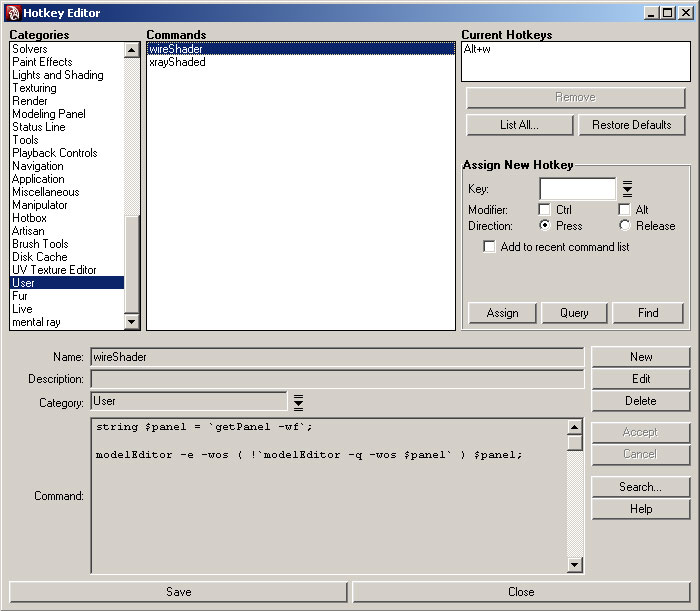
3. Open the Hotkey editor. To make finding your own hotkeys easier later, you should scroll the category option down to "User". Then click on the "New" button.
4. Name your hotkey anything you like, the name is not important.
5. Copy the following into the large open field at the bottom:
string $panel = `getPanel -wf`;
modelEditor -e -wos ( !`modelEditor -q -wos $panel` ) $panel;
5. Hit the "Accept" button. You should see the white field turn gray as in the picture above. Now Maya has a command stored in your preferences, but there is still one thing left to do before you can make use of the new function. You need to assign a key or combination of keys to the command.
6. Let's try setting "s" as our hotkey for this function. We first make sure that "s" is open by typing an s into the "Assign New Hotkey" field on the right side of the editor. Then we click the "Query" button. You should get a result like this:
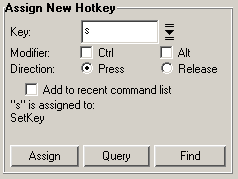
By default the "s" key is assigned to the SetKey function, so unless we intend to overwrite this hotkey, (which is up to you) we need to find another option. I like Alt + "w". You can add "Alt" or "Ctrl" by checking their respective boxes. You may even choose arrow or function keys from the drop down menu located next to the "Key:" field. Once you've decided on the key for this command, hit the "Assign" button to commit the changes to your preferences.
Note: Hotkeys are saved in the personal preferences of the currently logged in user of the machine you're currently sitting at. Moving to a different computer or logging in as a different user will result in a completely different set of hotkeys.
Why does this work?
The real trick in getting Maya to do what you want it to depends on how specific your instructions are. For this command we needed to be very specific about two things: a) what view we wanted to modify and b) how we wanted to modify it. Figuring out what panel we want to modify is fairly easy, as Maya has a built in command for getting that information. The command is called getPanel and to get the relevant panel, we need to add the flag -wf. This is short for "with focus." Part B is a little more difficult, as we not only need to know how the scene looks presently but how it will look once it has been edited. In this case, we were able to take advantage of the fact that wire frame is either on or off. That means the status of wire frame is a "boolean." Like most languages, MEL considers booleans to be either zero or one. Think of zero or one as off or on, respectively. In other words, the boolean becomes a switch for us. We simply tell Maya to flick the switch. If the switch was off before we run the command, Maya turns it on - or vice versa.
The breakdown of this hotkey goes like this:
| a) keep some data in a variable named | $panel |
| b) the data in our variable should be calculated now | = |
| c) you need to perform a function to calculate the data | ` |
| d) the function you need to perform is | getPanel |
| e) the panel we want you to look at is the one "with focus" | -wf |
| f) this completes this command and instruction | `; |
| g) next we want to run another function called | modelEditor |
| h) we want to edit something that already exists | -e |
| i) we want the final result to be "wireframe on shaded" | -wos |
| j) we want to define the "wireframe on shaded" parameter with another function | ( |
| k) we want the result to be the opposite of the current status | ! |
| l) we need to use the same command to get those results | `modelEditor |
| m) to get information from Maya we need to "query" it | -q |
| n) is the scene currently showing "wireframe on shaded" | -wos |
| o) finish the question inside our command | `) |
| p) and specify that this entire enquiry was all about the panel we asked about in the first line | $panel |
| q) end function | ; |
Note: The dash after getPanel and modelEditor is called a flag. In MEL these are used to specify particular behaviors for complex functions.
The same code works to quickly view your geometry in x-ray mode when you use this slight variation:
string $panel = `getPanel -wf`;
modelEditor -e -xray ( !`modelEditor -q -xray $panel` ) $panel;
The only differences in this command are the flags after the modelEditor commands. The -wos flags (short for "wireframe on shaded") have been replaced with -xray flags.
After adding both of these hotkeys to your preferences, you should be able to rapidly toggle your view from any smooth shaded model to wireframe on shaded or x-ray, or a combination of both.